If you are pouring hours into live streaming, you want the maximum number of eyes on your content. Limiting yourself to a single platform like Twitch or YouTube means you are leaving potential viewers on the table. Enter multi-streaming (or simulcasting)—the process of broadcasting your live video to multiple platforms at the exact same time.
Whether you are a gamer, podcaster, or brand, multi-streaming is one of the fastest ways to expand your reach. In this guide, we will walk you through the two best methods to multi-stream: using a cloud-based service (easy on your internet) and using an OBS plugin (100% free).
Method 1: The Cloud-Based Route (Using Restream)
Using a cloud service like Restream or StreamYard is the most popular way to multistream. You send one video feed to the cloud, and their servers duplicate it and send it to Twitch, YouTube, Facebook, and Kick. This means it requires no extra internet bandwidth or computer processing power on your end.
Step 1: Create a Multistreaming Account
First, you need a hub. For this example, we will use Restream.io, as it integrates perfectly with most broadcasting software.
- Go to Restream.io and sign up for a free account.
- Navigate to your main dashboard.
Step 2: Connect Your Streaming Platforms
Now, tell the cloud where you want your stream to go.
- On your dashboard, click Add Channel.
- Select the platforms you want to broadcast to (e.g., Twitch, YouTube Live, Kick).
- Follow the on-screen prompts to log into each account and grant authorization.
- Toggle the switch next to each connected channel to the “On” position.
Step 3: Connect to Your Broadcasting Software (OBS)
Next, you need to connect your software (like OBS Studio) to your cloud service.
- Open OBS Studio.
- Go to Settings > Stream.
- In the “Service” drop-down menu, select Restream.io.
- Click Connect Account and log in, OR select Use Stream Key and paste the RTMP URL and Stream Key provided on your Restream dashboard.
- Click Apply and OK.
Step 4: Go Live!
You are all set! When you hit Start Streaming in OBS, your feed will travel to Restream, which will instantly broadcast it to all your connected platforms.
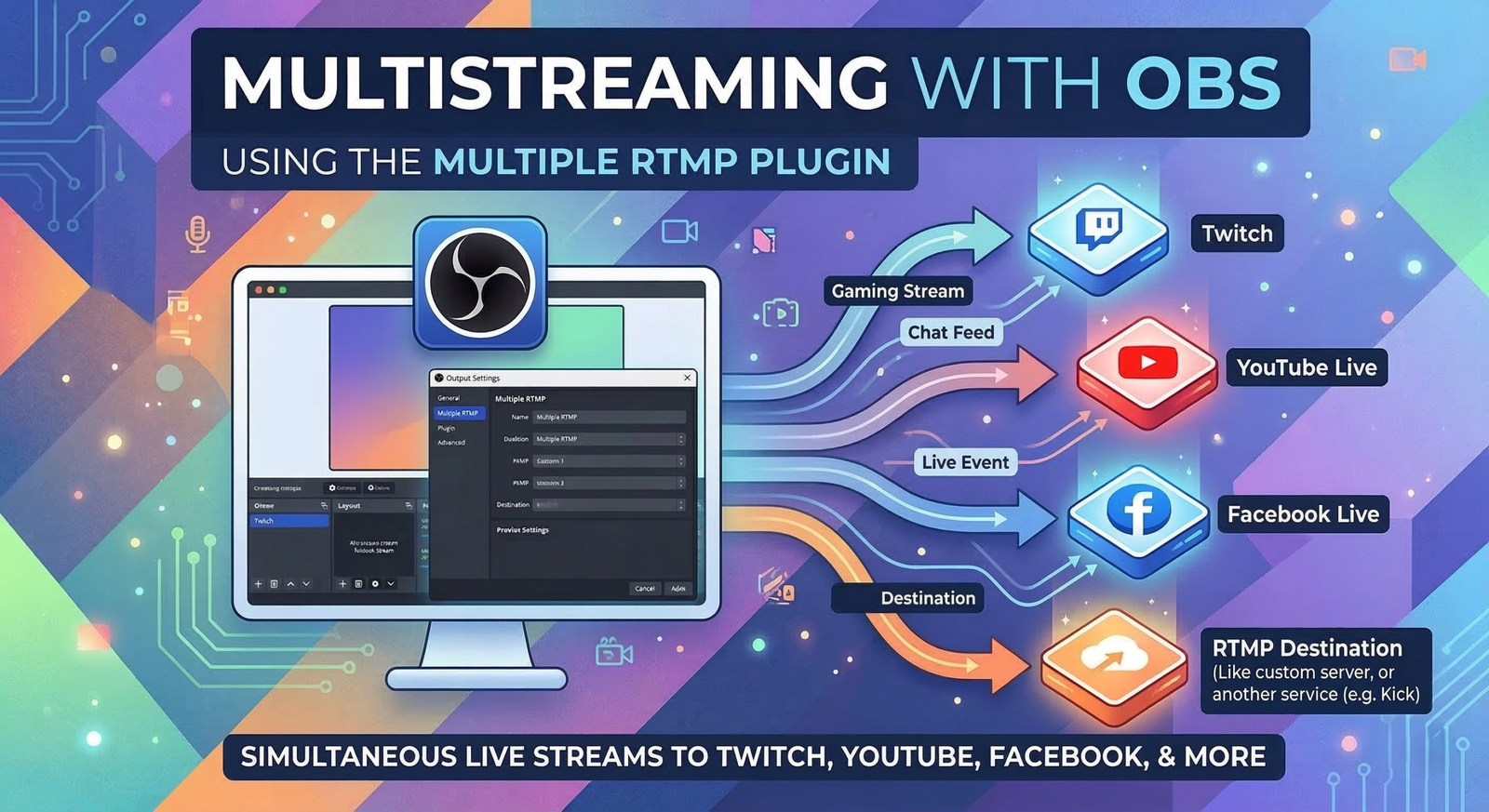
Method 2: The Free Software Route (OBS Multiple RTMP Plugin)
If you have a powerful PC and a high-speed internet connection with excellent upload speed, you can bypass paid cloud services and multistream directly from OBS for free.
Important Note: Every platform you add requires extra upload bandwidth and GPU/CPU power. If your stream requires 6,000 kbps for Twitch, streaming to Twitch and YouTube will require 12,000 kbps of steady upload speed.
Step 1: Download the Multiple RTMP Plugin
- Close OBS Studio.
- Go to the OBS forums and search for the Multiple RTMP outputs plugin (by SoraYuki).
- Download the installer for your operating system and run it.
Step 2: Set Up Your Primary Stream
- Open OBS Studio. You will now see a new dock titled “Multiple Output”.
- Go to your standard Settings > Stream and set up your primary platform (e.g., Twitch) just like you normally would.
Step 3: Add Additional Destinations
- In the new “Multiple Output” dock, click Add New Target.
- Name it (e.g., “YouTube”).
- Go to your YouTube Live Control Room, copy your Stream URL (RTMP server) and Stream Key, and paste them into the plugin settings.
- Under “Video Settings” and “Audio Settings”, you can choose to Get from OBS (which uses your primary stream’s quality settings) or customize the encoder if your PC can handle it.
- Click OK.
Step 4: Go Live!
- Click the main Start Streaming button in OBS to go live on your primary platform.
- Go to the Multiple Output dock and click Start next to your added platforms (like YouTube). You are now multistreaming!
Best Practices for Multistreaming Success
- Combine Your Chats: Reading multiple chats on different monitors is chaotic. Use tools like Restream Chat or Social Stream Ninja to merge all your chat rooms into one unified feed inside OBS.
- Acknowledge All Viewers: Don’t favor one platform’s chat over another. Try to read the username and the platform out loud so viewers know you are paying attention to everyone.
- Monitor Your Bitrate: If you notice your stream dropping frames, your internet might be struggling to handle multiple direct uploads. If this happens, lower your bitrate or switch to the cloud-based method (Method 1).