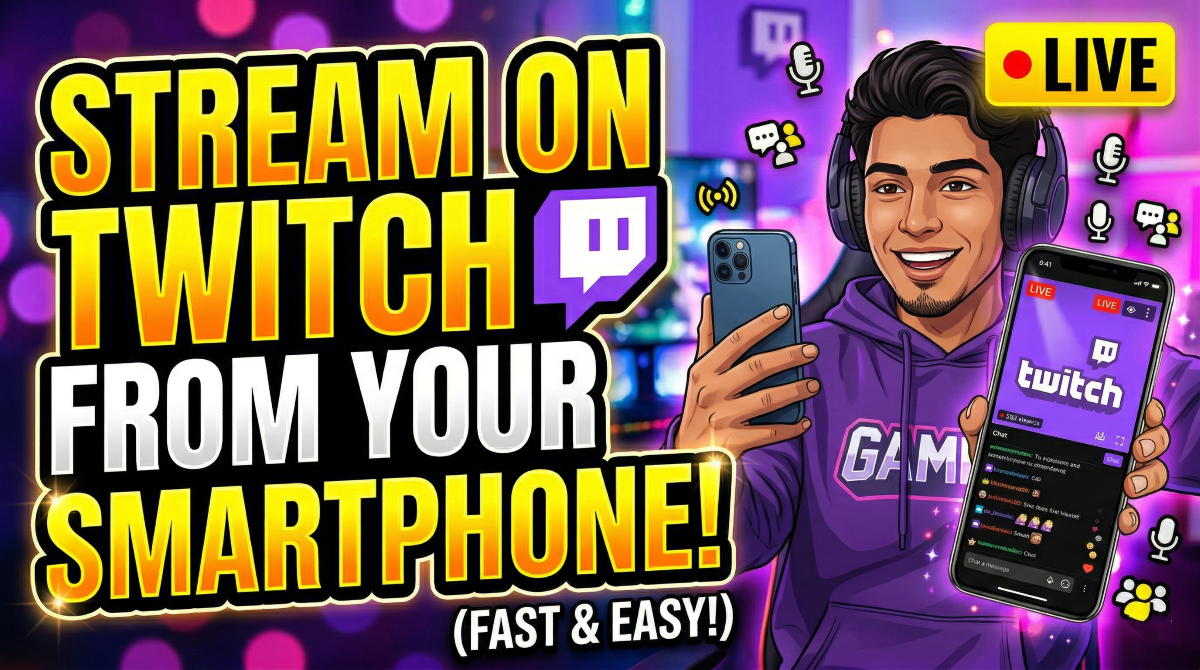
In the early days of livestreaming, broadcasting content required a massive investment. You needed a high-end gaming PC, a dedicated capture card, professional-grade microphones, and a complex web of cables. Today, that barrier to entry has vanished. With the rise of high-performance mobile devices and the optimization of the Twitch platform, your smartphone is now a powerful, portable broadcasting studio.
Whether you want to share your high-octane mobile gaming sessions or take your viewers on a walk through a vibrant city park (IRL streaming), mobile broadcasting is more accessible than ever. This guide will walk you through everything you need to know to go live on Twitch using nothing but your smartphone.
1. The Prerequisites: What You Need Before Going Live
Before you hit the “Go Live” button, there are a few technical and administrative boxes you need to tick.
A Twitch Account and 2FA
First, you need a Twitch account. If you haven’t already, sign up at Twitch.tv. Crucially, Twitch requires Two-Factor Authentication (2FA) to be enabled before you can stream. This isn’t just for security; it is a mandatory requirement for broadcasters. You will need a computer or a mobile browser to set this up in your security settings.
A Stable Internet Connection
Streaming is data-intensive. For a smooth 720p or 1080p stream, you generally need an upload speed of at least 3–5 Mbps. While 4G and 5G connections are often fast enough, they can be unstable. Whenever possible, use a high-speed Wi-Fi connection to ensure your stream doesn’t buffer or drop out.
The Right Hardware
While any modern smartphone (iOS or Android) can stream, devices with at least 4GB of RAM and a relatively modern processor will handle the simultaneous tasks of gaming and encoding much better.
2. Setting Up the Twitch App
The easiest way to start is through the official Twitch app, available on the Apple App Store and Google Play Store.
Step 1: Grant Permissions
Once the app is installed and you’ve logged in, tap your profile icon in the top-left corner and select the “Go Live” button. The app will ask for permission to access your camera and microphone. Granting these is essential for the app to function.
Step 2: Choose Your Stream Type
Twitch categorizes mobile streams into two main types:
- Stream Games: This mode allows you to broadcast whatever is happening on your screen. It’s perfect for PUBG Mobile, Genshin Impact, or League of Legends: Wild Rift.
- Stream IRL: Short for “In Real Life,” this mode uses your phone’s front or rear camera to broadcast your surroundings and yourself.
3. How to Stream Mobile Games
Mobile gaming is one of the fastest-growing categories on Twitch. Here is how to set it up:
- Select “Stream Games”: After hitting “Go Live,” select the game you intend to play. Twitch has a massive database; if your game isn’t listed, you can search for it.
- Adjust Your Metadata: You will be prompted to set a Stream Title, select a Category, and add Tags. Don’t overlook this—a catchy title and relevant tags (like #Competitive or #FirstPlaythrough) are how new viewers find you.
- Configure Audio and Camera: You can choose to have your front-facing camera appear as a “Facecam” overlay. Ensure your microphone is enabled so viewers can hear your commentary.
- The “Do Not Disturb” Rule: This is the most important tip for mobile gamers. Before you start, enable “Do Not Disturb” mode on your phone. If you don’t, every private text message or phone call you receive will be broadcast live to your entire audience.
- Go Live: Once you hit the “Start” button, your phone will begin capturing your screen. Switch over to your game app and start playing!
4. How to Stream IRL (In Real Life)
IRL streaming is about connection and spontaneity.
- Select “Stream IRL”: This will open a camera interface similar to Instagram or TikTok.
- Set Your Title: Give your stream a descriptive name like “Exploring Tokyo at Night” or “Lunch and Chat.”
- Select the “Just Chatting” Category: This is the most popular home for IRL content.
- Orientation: Choose between Portrait or Landscape. While TikTok is portrait-heavy, Twitch viewers generally prefer Landscape (horizontal) mode as it fills the entire player screen on most devices.
- Start Broadcasting: Tap the “Start Stream” button.
5. Leveling Up: Professional Mobile Setups
If you find that you enjoy mobile streaming, you might want to move beyond the basic Twitch app. Third-party apps like Streamlabs Mobile or PRISM Live Studio offer advanced features that the native Twitch app lacks.
Overlays and Alerts
Standard Twitch mobile streaming is quite “bare bones.” Using an app like Streamlabs allows you to add overlays—visual frames that make your stream look professional. More importantly, it allows you to display Alerts. When someone follows or subscribes to your channel, a notification will pop up on the screen, allowing you to thank them in real-time.
External Hardware
- Microphones: Phone microphones are notorious for picking up wind noise or the sound of your fingers sliding across the screen. A small plug-in lavalier mic or a directional “vlogger” mic can significantly improve audio quality.
- Stabilization: If you are streaming IRL, a Gimbal (like the DJI Osmo Mobile) is a game-changer. It uses motors to keep your phone perfectly steady, eliminating the shaky-cam effect that can make viewers feel motion-sick.
- Battery Banks: Streaming drains battery life faster than almost any other activity. Always carry a high-capacity power bank and keep your phone plugged in while broadcasting.
6. Safety and Privacy Considerations
Mobile streaming introduces unique risks because you are often out in public or showing your personal device’s interface.
- Protect Your Location: Be careful not to show street signs, your house number, or landmarks that could give away your exact location if you aren’t comfortable with people knowing where you are.
- Screen Privacy: When streaming games, be wary of switching between apps. You might accidentally open your photo gallery or a banking app. Use your phone’s built-in “Focus” or “Gaming” modes to limit what can appear on screen.
- Moderation: Managing a chat while playing a game or walking is difficult. Use Twitch’s AutoMod settings to filter out banned words, and try to have a trusted friend act as a moderator to keep the chat clean while you are busy.
7. Engaging with Your Audience
The “Twitch experience” is built on interaction. Unlike YouTube, where content is consumed after the fact, Twitch is a two-way conversation.
- Read the Chat: If you are gaming, try to glance at the chat during loading screens or lulls in the action. If you are doing an IRL stream, hold the phone in a way that allows you to see the text scrolling by.
- Acknowledge New Viewers: A simple “Hey [Username], welcome to the stream!” goes a long way in building a community.
- Call to Action: Remind people to follow the channel if they are enjoying the content.
Conclusion
Streaming on Twitch from your smartphone has democratized the world of content creation. It has moved the power of broadcasting from the hands of those with expensive hardware into the pockets of anyone with a story to tell or a game to play.
While the technical setup is remarkably simple, the key to success on Twitch remains the same regardless of your equipment: authenticity and consistency. You don’t need a $3,000 PC to build a loyal following; you need a unique voice, a bit of charisma, and the willingness to engage with your viewers.
By following this guide—optimizing your connection, protecting your privacy, and utilizing the right tools—you can turn your smartphone into a window to the world. So, charge your battery, find a strong Wi-Fi signal, and start your broadcasting journey today. The world is waiting to see what you’ve got.